Tutorial: Blind Loading, from Order to Trip
A step-by-step hands-on lesson — create a blind loading order, follow the driver to the scale, link the order to a contract and route, and watch a real trip come into being.
In this lesson you walk the «Blind Loading» feature from start to finish on the real screens: you create an order with no advance data, the driver accepts it, loads at the scale and reports what he discovered, then you link the order to a contract and route and a real trip is born to follow the normal trip lifecycle. The lesson needs two people — an ops user on the web dashboard and a driver on the phone — or you can play both roles on a demo account.
A tutorial, not a reference
Here we walk one successful scenario step by step. For the full status list, every field, and all the rules, see the Blind Loading reference page.
Before you start
- The Blind Loading module is enabled for your company — "Blind Loading" shows in the web dashboard's sidebar.
- An equipped driver: active vehicle and valid documents (anyone not qualifying shows disabled in the create list, with the reason).
- An active contract with an approved route whose quantity cap fits the expected load — you'll need it at the linking step.
- The driver's phone has the app installed and is logged in.
The scenario at a glance
| # | Phase | Who | Where | Result |
|---|---|---|---|---|
| 1 | Create the blind loading order | Ops | Web dashboard | Order "awaiting acceptance"; vehicle + driver reserved |
| 2 | Accept and head out | Driver | Mobile app | Order "en route" |
| 3 | Arrive and load | Driver | Mobile app | Order "loading" |
| 4 | Report the load info | Driver | Mobile app | Order "awaiting trip link" |
| 5 | Link to a trip | Ops | Web dashboard | Order "converted to trip" + a brand-new real trip |
| 6 | Continue the trip | Both | Web + mobile | Completed trip with calculated revenue |
The lesson
1. Ops: create the blind loading order
From the sidebar open Blind Loading and press «+ أمر تحميل حر» (new order):
- Pick the equipped driver — only qualifying drivers are selectable; the rest show disabled with the reason.
- Type the loading site (station or dock name), and optionally add coordinates so the system can geofence-check the driver's arrival.
- Optionally add instructions for the driver (e.g. enter through the east gate and wait your turn).
✅ Success check: a new row appears, "awaiting acceptance", with its own order number, and the order card lands on the driver's phone instantly. From this moment the vehicle and driver are reserved — no standard trip can be dispatched on them until the order finishes or is cancelled.
2. Driver: accept and head out
On the driver's phone a teal card titled "blind loading order" appears with just the loading site and the instructions — no client, no weight. He taps accept, then «انطلاق إلى موقع التحميل» (head to the loading site).
✅ Success check: the order's status flips to "en route" on the dashboard in real time.
3. Driver: arrive and load
At the site he taps «وصلت إلى موقع التحميل» (I've arrived) — the app pins the arrival coordinates (if location is unavailable, he can continue), and the truck starts loading.
✅ Success check: the dashboard status is now "loading".
4. Driver: report the load info
After loading, at the scale, he opens «إرسال بيانات التحميل» (submit load info) and enters what the station documents say:
- Weight from the site scale in tons (required), plus the loaded quantity and its unit.
- Client as written on the loading document, the destination, the material, and a reference number.
- A scale-ticket photo (required) and optional extra document photos — captured and uploaded straight from the phone.
Then confirm.
✅ Success check: the card shows "⏳ awaiting management approval" with an edit button — he can correct any field and resubmit until the moment of approval — and the dashboard row flips to "awaiting trip link" with the Link to Trip button now visible.
5. Ops: review the report and link the order to a trip
Press «ربط برحلة» (Link to Trip) to review the driver's report as submitted: actual weight, client, destination, material description, reference number, plus the report time and coordinates. Then:
- Pick the active contract — its routes appear with unit price and total quantity per route.
- Pick the route — the planned load quantity is prefilled from the driver's report (adjust it in the route's unit if needed).
- Correct the client name or material description if needed, then press «تأكيد الربط برحلة» (Confirm link).
Before confirming, the system re-checks the contract is active, the route is approved, and the quantity fits the cap — a failed gate shows a clear message and nothing is created.
The link button only appears after the driver reports
An order cannot be linked before the driver submits his weight, client, and scale-ticket photo — his report replaces the weight step of a standard dispatch.
✅ Success check: the order becomes "converted to trip", and a real trip is born in one step: bound to the route and its unit price, carrying the weight document and scale-ticket photo, with its milestones (dispatched, accepted, arrived) back-filled from the order, and the vehicle now "at weight station".
6. Together: finish the trip like any other
From here the trip is completely normal: the supervisor attaches the Bayan al-Naql, the driver completes the post-loading checklist, then transit until delivery and trip finish — and revenue is calculated from the route formula (actual quantity × unit price) like any trip in the system.
✅ Success check: the trip is "completed", the settlement revenue matches the route formula, and the blind order rests in the queue as a fully-referenced record.
If something stalls
| Symptom | Likely cause | What to do |
|---|---|---|
| Driver doesn't appear in the create list | Doesn't meet readiness rules (vehicle or documents) | The disabled entry shows the reason; fix it and reopen the dialog |
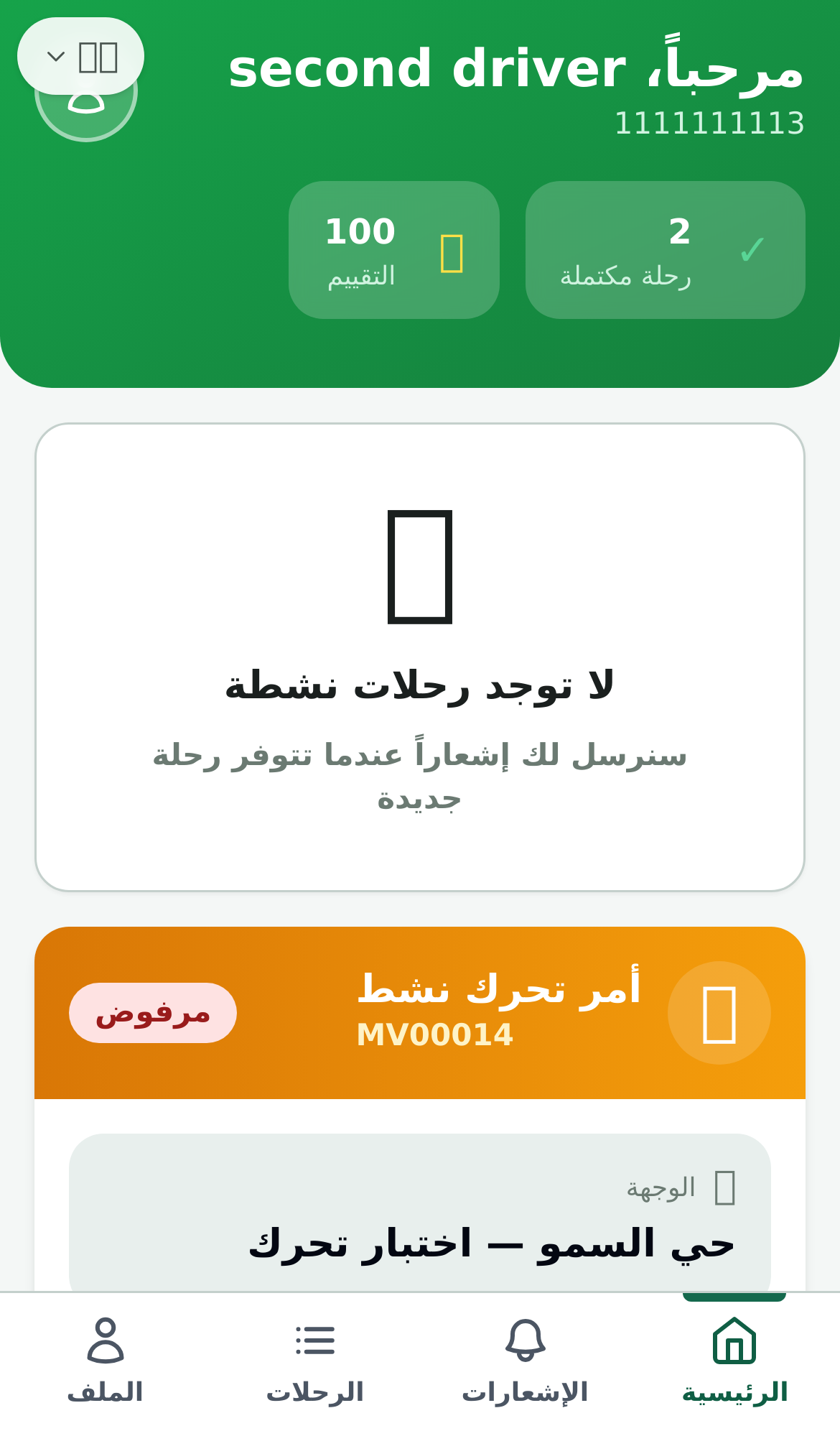
| The order card never reaches the driver's phone | Different account or company, or a stale screen | Refresh the screen, confirm the same mobile number, and check the order's status on the dashboard ("awaiting acceptance" = it did arrive) |
| The "Link to Trip" button never appears | The driver's report hasn't arrived yet | No link before the report; watch the status or remind the driver to submit the load info |
| "No routes for this contract" in the link modal | The picked contract has no approved route | Pick another contract with routes, or add and approve the route, then retry |
| Confirm fails on quantity | Quantity exceeds the route cap | Adjust the quantity to fit the cap or pick another route |
| You want to back out after creating | Cancel is available before conversion only | Cancel the order before conversion — vehicle and driver return to their state automatically; after conversion it's a trip managed through the normal trip path |
| The driver made a typo in his report | Data-entry mistake before approval | "Edit" on the order card and resubmit — available until approval |
Two common states, as they look on screen:
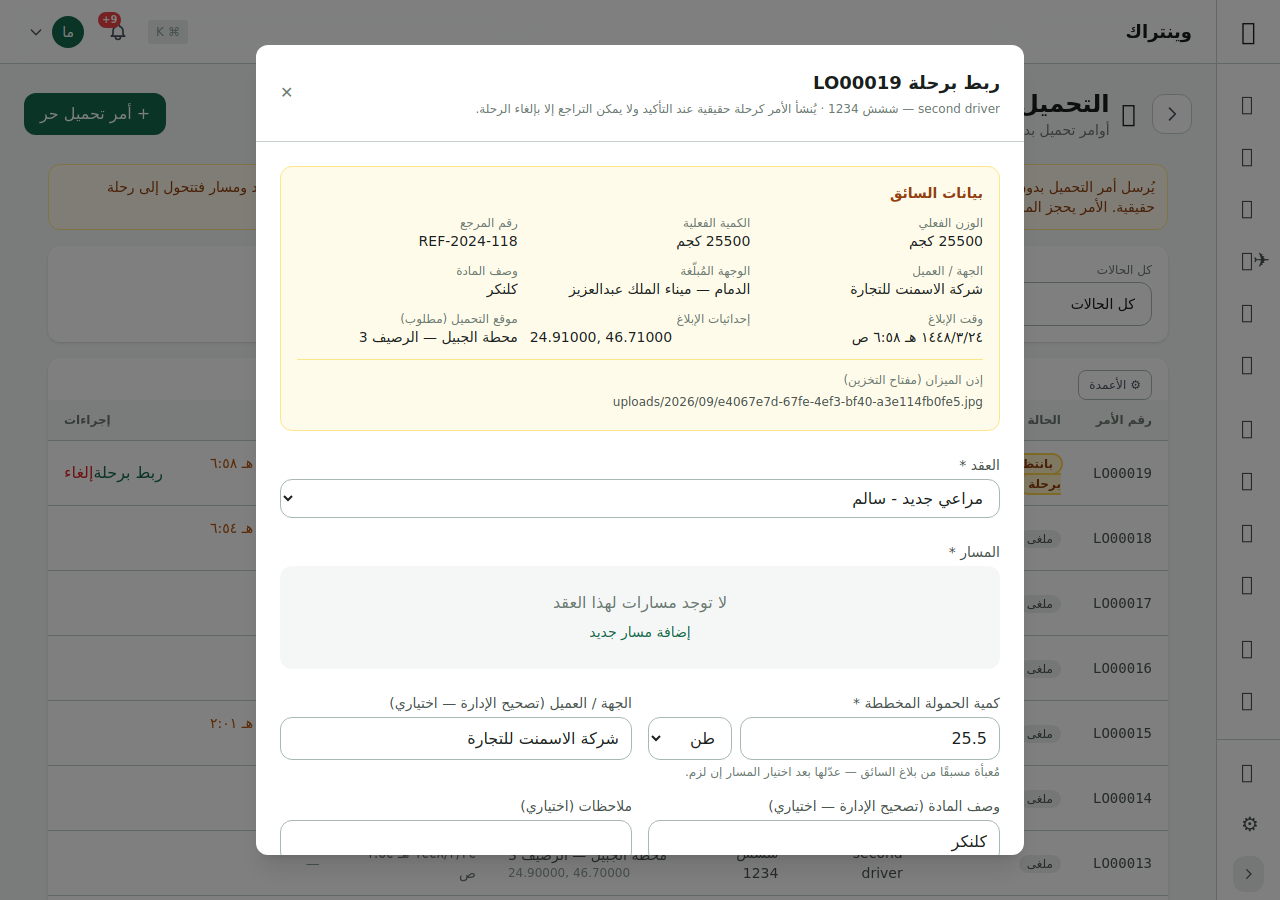
- First image (ops): the Link-to-Trip modal with a routeless contract — pick another contract or add and approve a route.
- Second image (driver): the home screen with no active trips — if the order was sent ("awaiting acceptance" on the dashboard), refresh and verify the driver's account.
Check your mastery
- You can create a blind loading order and know that dispatching it reserves the driver and vehicle until the order ends.
- You can read the order statuses (awaiting acceptance → en route → loading → awaiting trip link → converted) and know who triggers each transition.
- You can link a report to a contract and route without exceeding the quantity cap, and know what carries into the trip on confirm (weight, scale ticket, milestones).
- You know the dividing line: before conversion, cancel is available; after it, the trip is managed through the normal trip path.
What's next
- The full reference: Blind Loading — every status, field, and rule.
- The next step in the lifecycle: Trip Workflow — from Bayan al-Naql to settlement.
- More tutorials are coming to the Tutorials section — a complete lesson for every feature.