Blind Loading
How dispatch sends an equipped driver to a loading dock with no contract or route, how the driver reports what he discovers at the scale, and how the order converts into a real trip.
«Blind loading» (التحميل الحر) serves fleets that load at docks and weighbridges without a prior contract — no client name, no route, no known quantity. Dispatch sends an equipped driver to the loading site; he queues, loads, then reports the actual weight, client, destination and a scale-ticket photo from his app. Ops then binds the order to a contract and route, and it becomes a real trip that follows the normal trip lifecycle through settlement.
Per-tenant module
Blind loading is a module that each company enables from Settings → Modules
(blind_dispatch). If you don't see it in the sidebar, it isn't enabled for your
company — contact your account manager.
The idea in one table
| Blind loading | Standard dispatch | |
|---|---|---|
| Who starts? | Ops (an order with no load data) | Regional supervisor (a fully-identified trip) |
| Known in advance | Loading site and driver only | Contract, route, quantity, price |
| How the trip is born | Ops «links» the order to a contract + route after the driver reports | The trip is created at dispatch |
After linking, the trip is a completely normal trip: Bayan al-Naql, post-loading checklist, transit, delivery, and revenue from the route formula — see the Trip Workflow.
Order statuses
| Status | Meaning |
|---|---|
| بانتظار القبول (Awaiting acceptance) | Sent to the driver, no decision yet |
| مقبول (Accepted) | Driver accepted and is preparing to depart |
| في الطريق (En route) | Driver is heading to the loading site |
| قيد التحميل (Loading) | Driver arrived; the truck is being loaded |
| بانتظار الربط برحلة (Awaiting trip link) | Driver submitted his data — ops' turn |
| تم التحويل إلى رحلة (Converted to trip) | Order finished; a real trip was created |
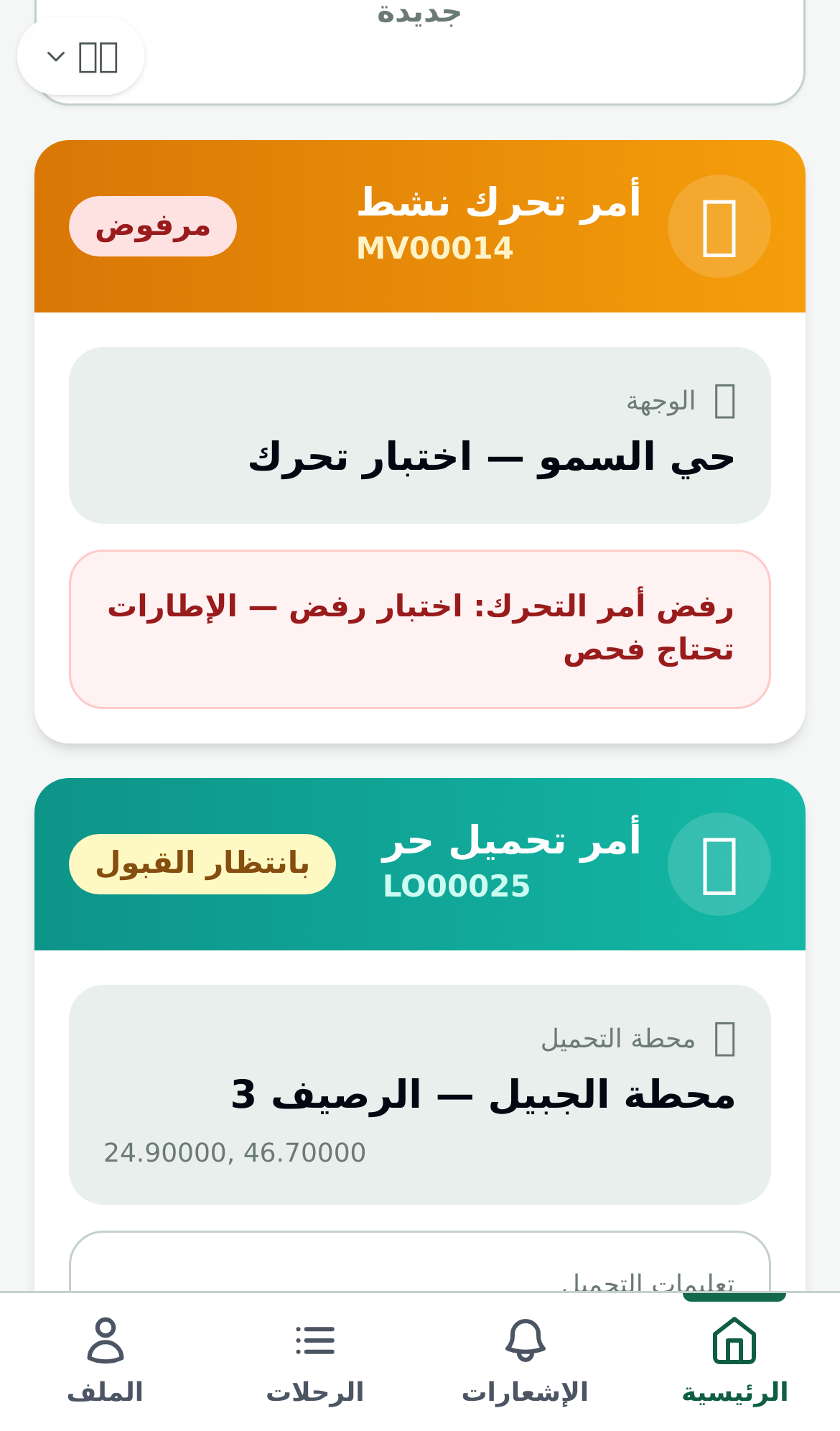
| مرفوض (Rejected) | Driver rejected the order (with a reason) |
| ملغى (Cancelled) | Ops cancelled the order |
Ops steps (web dashboard)
Create a blind loading order
From the Blind Loading page press «+ أمر تحميل حر» (New order), then pick:
- Equipped driver — only drivers meeting readiness rules (active vehicle, valid documents) are selectable; the rest show disabled with the reason.
- Loading site — the station/dock name (required), plus optional coordinates so the driver's arrival can be geofence-checked.
- Optional instructions (e.g. enter through the east gate and wait your turn).
On send, the order reaches the driver's app instantly and the vehicle + driver are reserved — no standard trip can be dispatched on them until the order finishes or is cancelled.
Wait for the driver's report
The row walks the statuses (awaiting acceptance → en route → loading) with live updates. When the driver reports from the scale, the row flips to «بانتظار الربط برحلة» (awaiting trip link) — only then does the «ربط برحلة» (Link to Trip) button appear.
The link button only appears after the driver reports
An order cannot be linked to a trip before the driver submits the weight, client and scale-ticket photo — his report replaces the weight step of a standard dispatch.
Link to a trip
Press «ربط برحلة» to review the driver's report as-submitted: actual weight, client, reported destination, material, reference number, plus the report time and coordinates. Then:
- Pick the active contract — its routes appear with unit price and total quantity per route.
- Pick the route — the planned load quantity is prefilled from the driver's report (adjust it in the route's unit if needed).
- Optionally correct the client name or material description, then press «تأكيد الربط برحلة» (Confirm link).
Before confirming, the system re-checks the contract is active, the route is approved, and the quantity fits the route cap — a failed gate shows a clear message and nothing is created.
What happens on confirm
A real trip is created in a single transaction: bound to the route and its unit price, carrying over the weight document and scale-ticket photo, with its milestones (dispatched, accepted, arrived) back-filled from the order, and the vehicle moves to "at weight station". The trip then follows the normal cycle: Bayan al-Naql → post-loading checklist → transit.
Driver steps (mobile app)
The driver needs no advance data
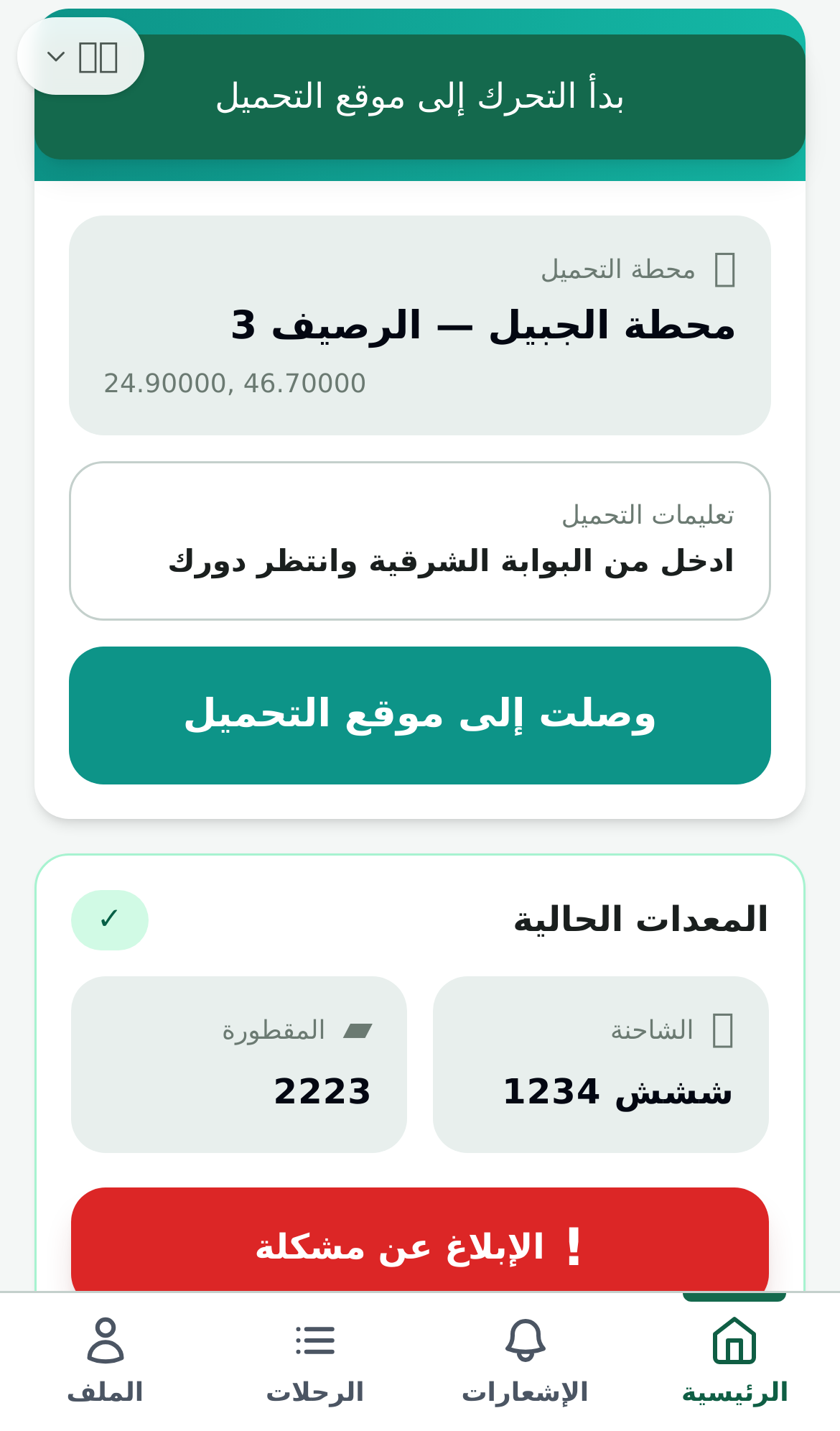
The driver receives an order with just his name on it: a loading site and instructions. Everything about client and weight is discovered at the site and reported from the app.
Accept and head out
A teal blind loading card appears on the driver's home screen. He presses accept, then «انطلاق إلى موقع التحميل» (head to the loading site), and on arrival «وصلت إلى موقع التحميل» (I've arrived) — the app pins a GPS fix at that moment (if location is unavailable, he can continue; arrival is never hard-blocked).
Submit the load info
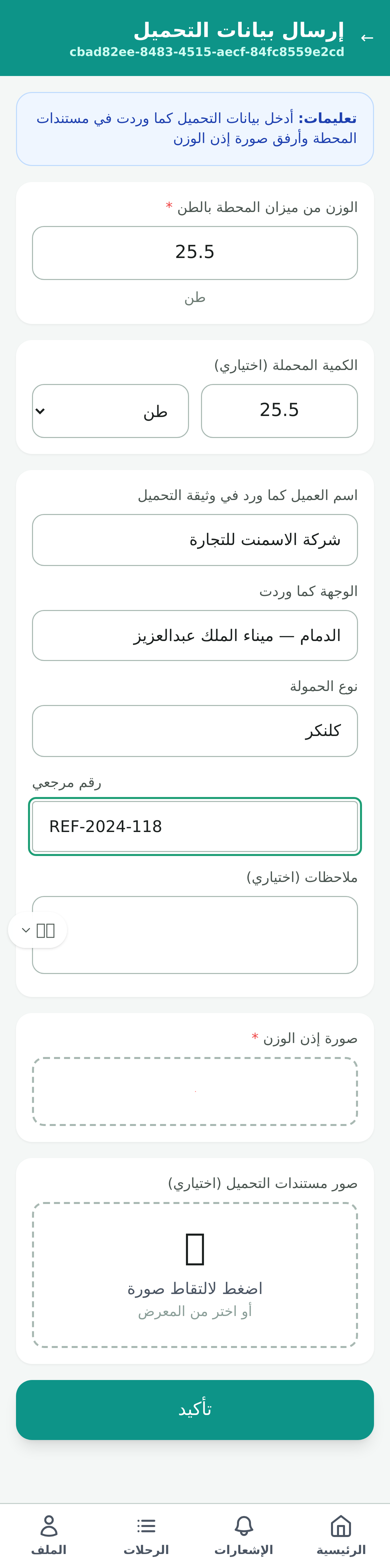
After loading, the driver opens «إرسال بيانات التحميل» (submit load info) and enters what the station documents say:
- Weight from the site scale in tons (required), plus loaded quantity and unit.
- Client name as written on the loading document, destination, material, and a reference number.
- A scale-ticket photo (required) and optional extra document photos — uploaded straight from the phone.
Then confirm. He can edit and resubmit until ops approves.
Awaiting ops approval
The card shows «⏳ بانتظار اعتماد الإدارة» (awaiting management approval) with an edit button. Until ops links the order, the driver can correct any field and resubmit.
After approval: a normal trip
When ops confirms, the order card disappears and a normal trip appears in its new state (awaiting Bayan al-Naql). The driver completes it like any trip: receives the Bayan from the supervisor, post-loading checklist, then transit and delivery.
Key points
- The driver owns the accuracy of his report (weight, client, scale ticket); ops owns picking the right contract and route.
- Cancel is available to ops in any status before conversion — the vehicle and driver return to their operational state automatically.
- No link without an active contract, an approved route, and a fitting quantity cap — blind loading creates no accounting exception; revenue comes from the route formula like any trip.
- Rejected and cancelled orders stay visible in the queue for review, with the reason.
- From the app: admin sidebar → «الدليل» (User Guide); drivers: Profile → «دليل الاستخدام».